Posting messages is the way to start new discussions with the other participants in your rundls. This article explains how you can post messages, including how to share files/documents or a link.
NOTE: Not sure how to find your rundl? Read more about navigating to a rundl.
To post a new message
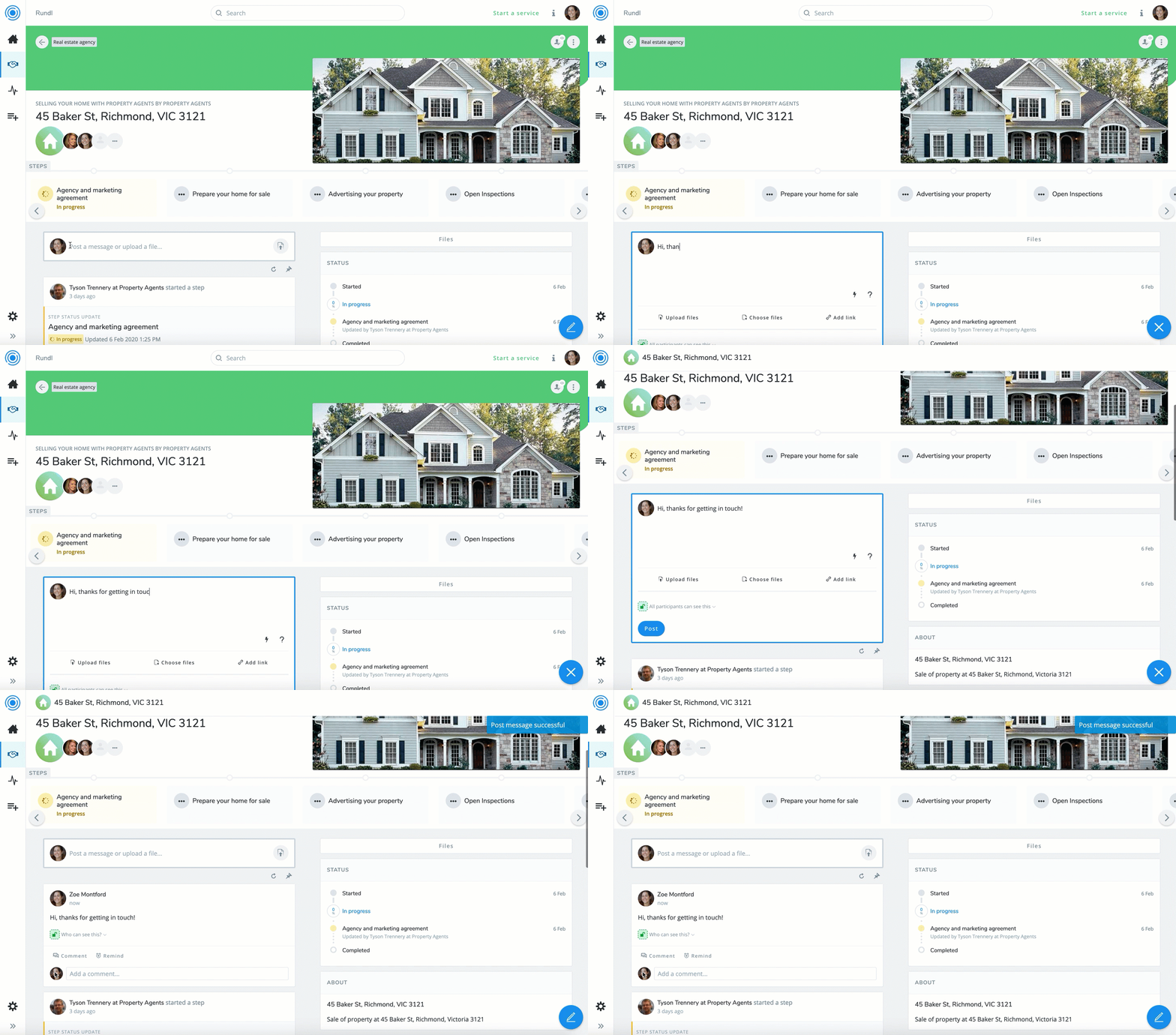
- Click the
 button at the bottom right of your screen OR click in the text field at the top of the feed. The post box expands.
 - Type your message.
- Click
 .
.
When posting a message you can also:
- Upload files from your computer/device to attach
- Choose files already uploaded to your rundl
- Attach links
- Restrict the visibility of your post
To upload a file
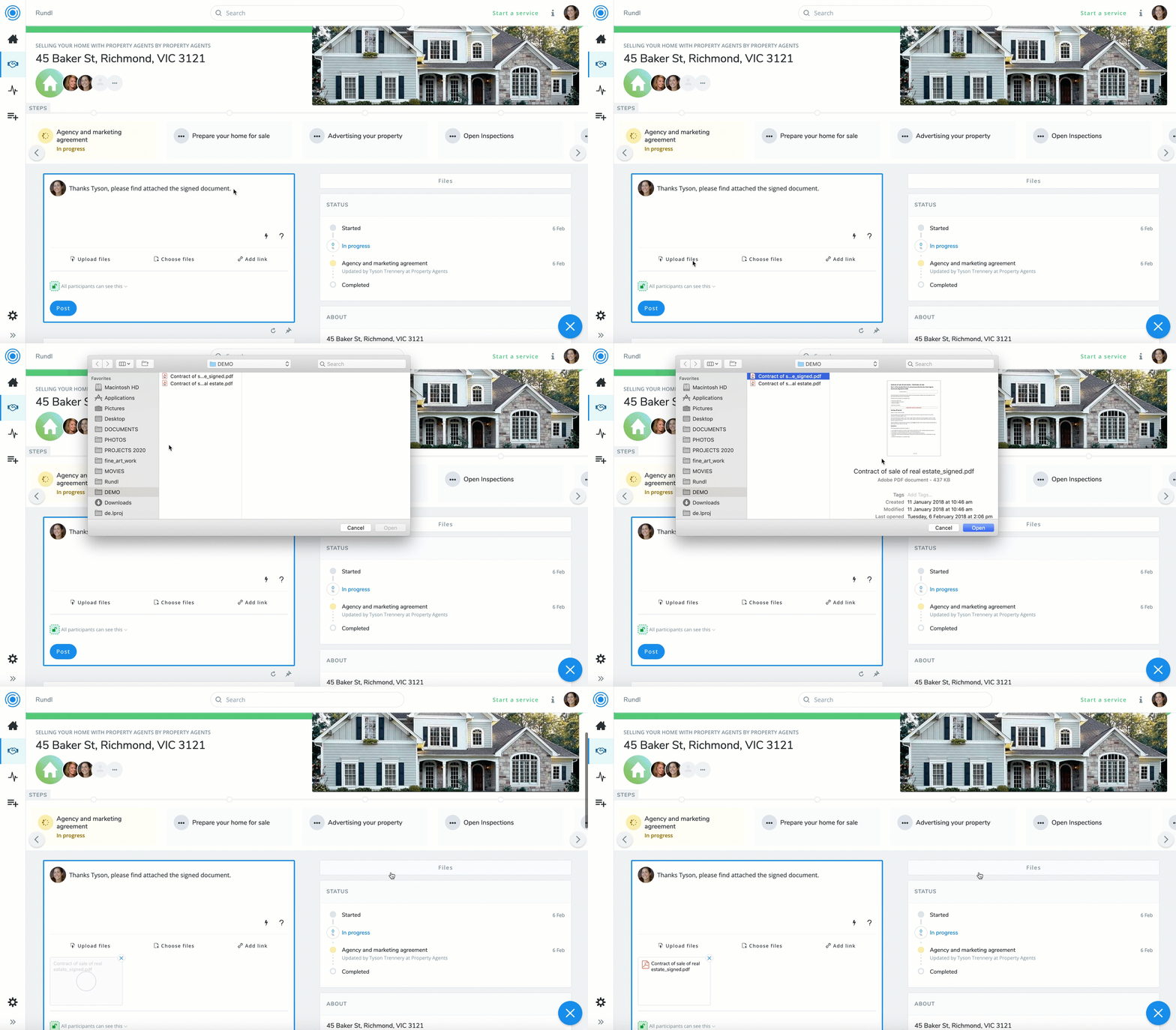
- Click

- Browse files on your computer and select the one you wish to upload.
- Wait until the upload completes. You can see the upload progress shown on the tile.
- Your file(s) is now attached and ready to post.
To attach a file from rundl files
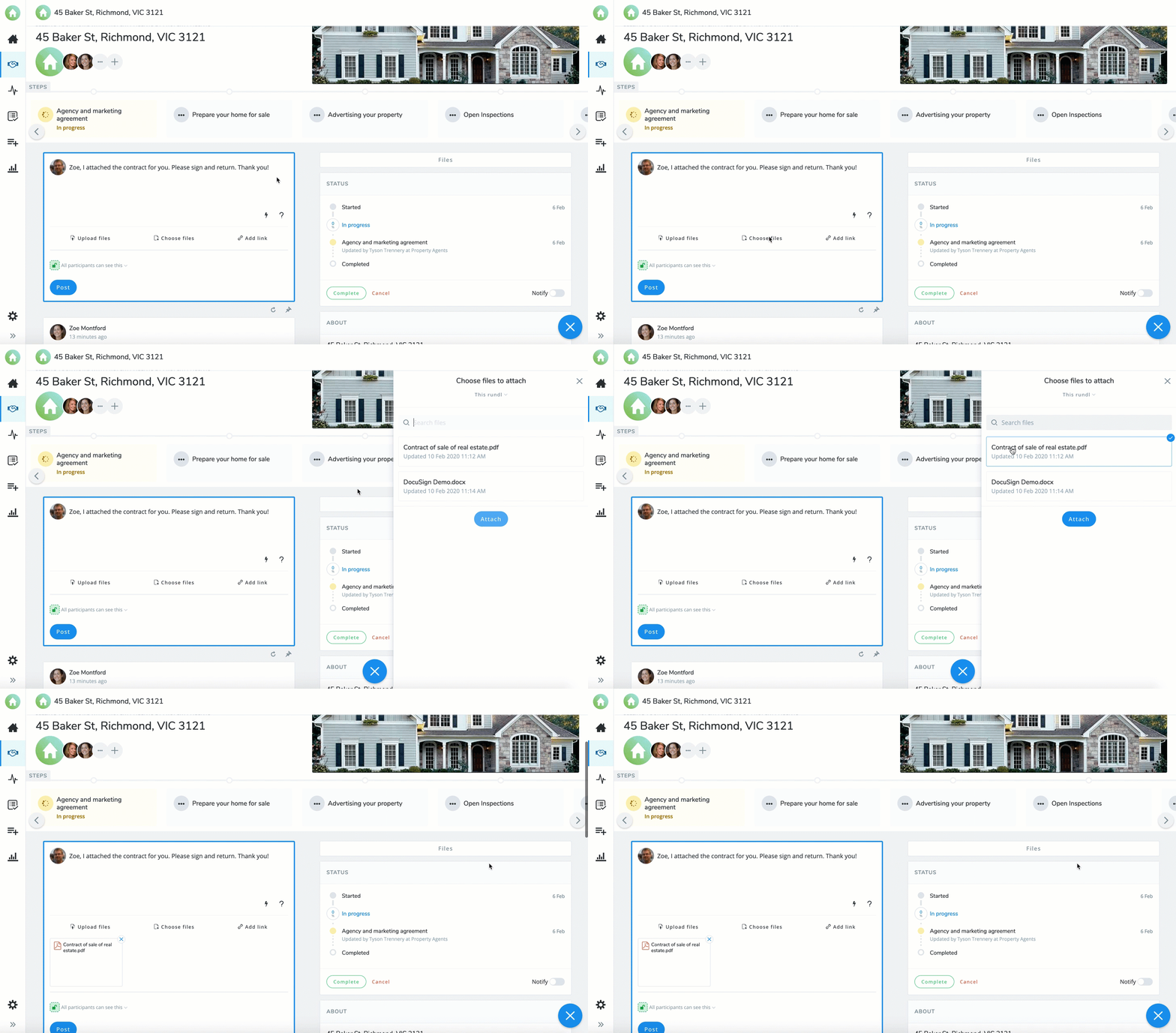
- Select
 to open up a list of the files in that rundl.
 - Select the files you want to attach to the post. You can also search the list of files.
- Once you have made you selection click
 .
. - Your file is now attached and ready to post.
To attach a link
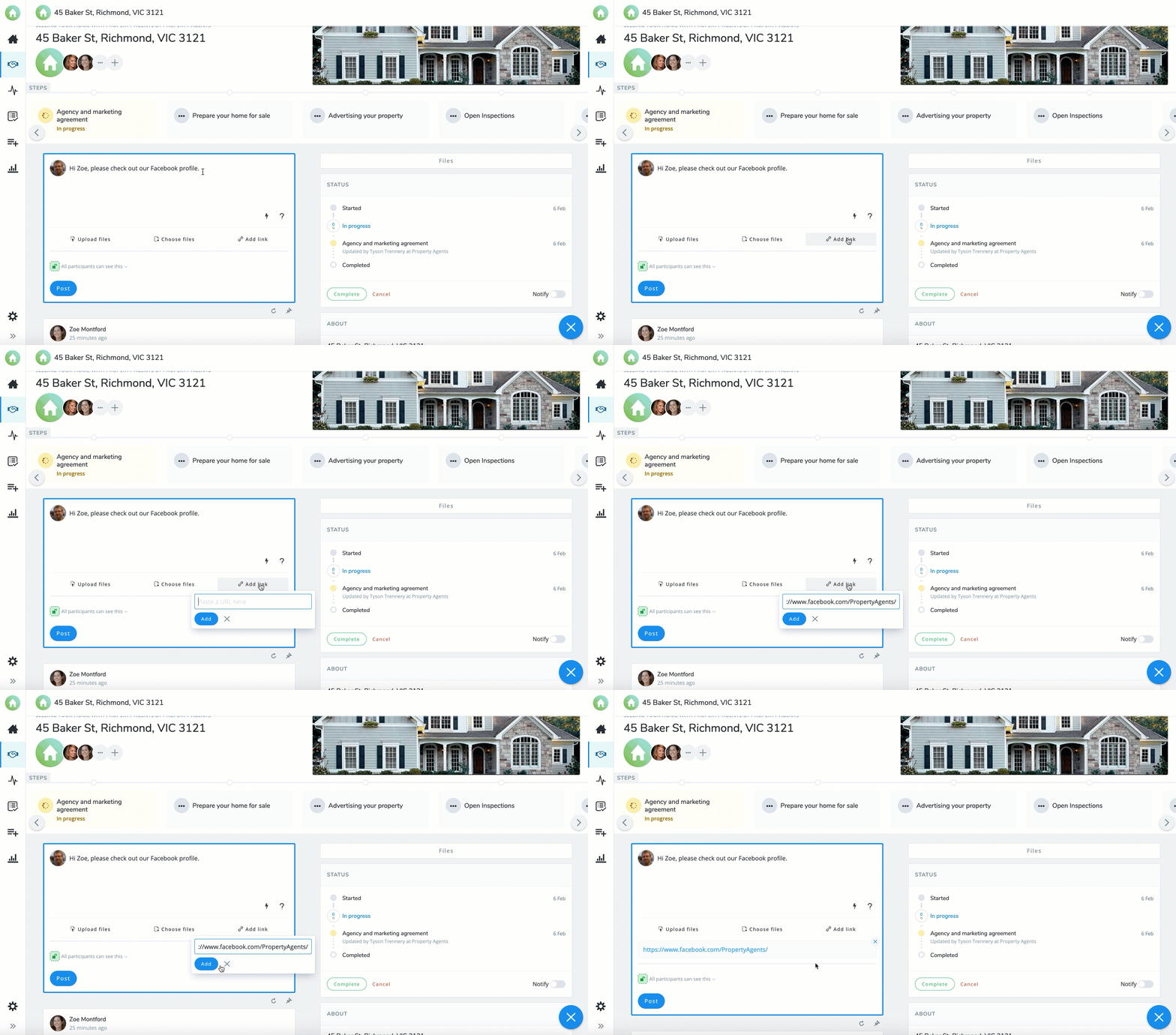
- Click

- to open the "Attach link" pop-out
- Form here you can enter a link to add to the post
- Enter the URL for your link and click
 .
. - Your link is now attached and ready to post.